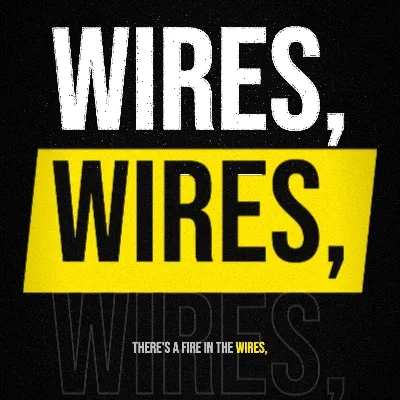



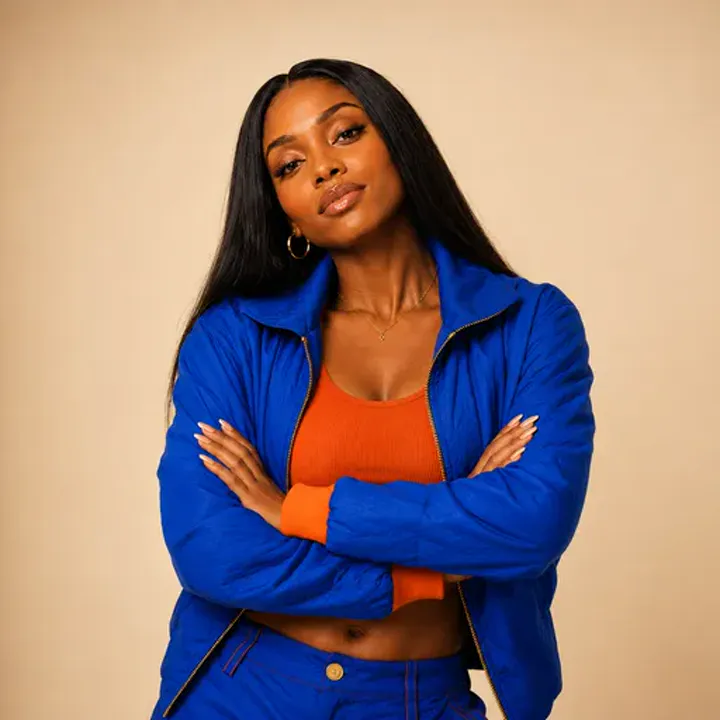

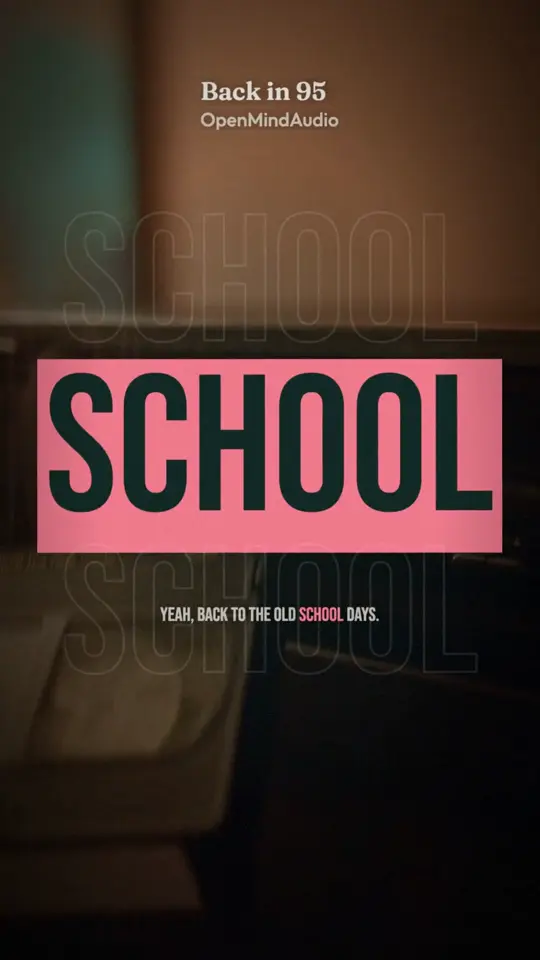
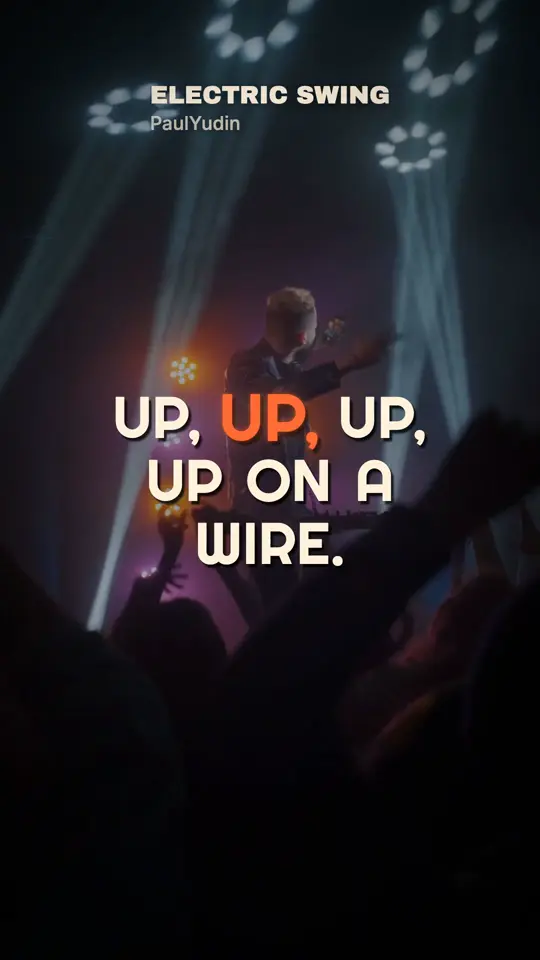
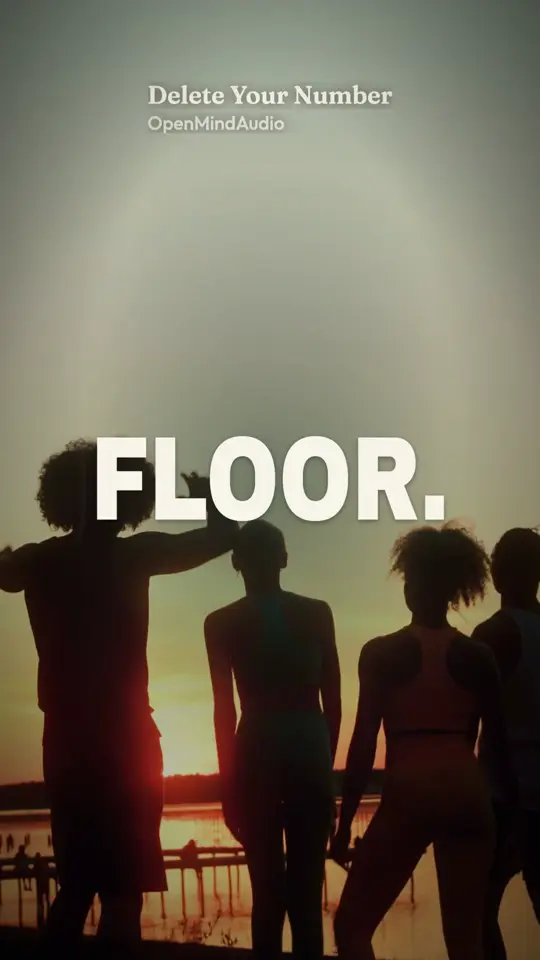
A Spotify Canvas for your song.
Kinetune is a Spotify Canvas maker that starts from your song. The editor opens with clips picked for it, already looping and playing. Swap them for your own, use your cover or a visualizer, or generate a clip from the song with you in it. You get a silent 9:16 loop that is ready for Spotify for Artists.
The loop is made to Spotify's own specs, so it uploads the first time.
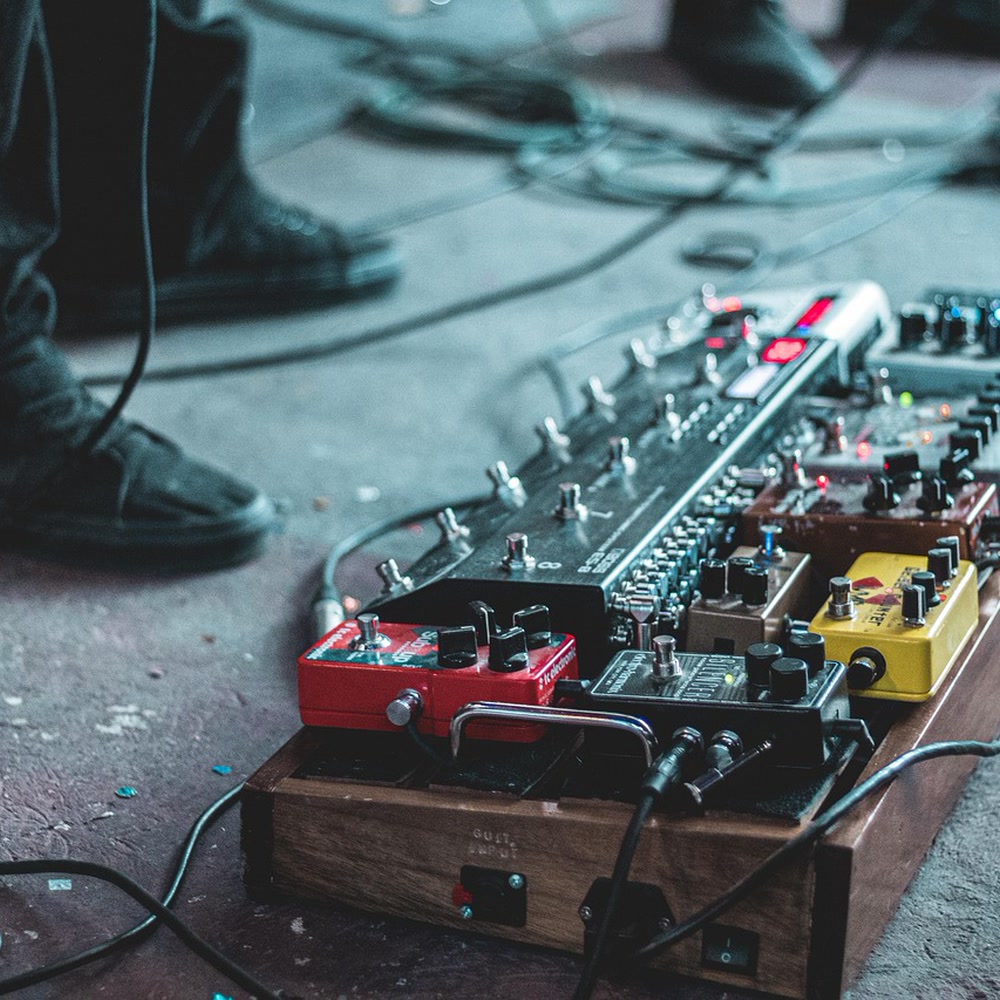
From that cover, this Canvas.
A 3 to 8 second silent loop that plays behind your track in Spotify. Pick clips, your cover or a visualizer, choose how it loops, and watch it play before you make it.
- Keeps the subject clear of Spotify’s controls
- No text, logos or promotion
- No faces talking to camera, no flashing
- 1080×1920, under 8 MB, silent, loops with no seam
One 8-second Canvas
- From clips, your cover or a visualizerStock clips, your own footage, or your cover in motion
- 43credits≈ 34¢
AI clips · on top, only if you make them
- Each image6credits
- Each videofrom141credits
You upload the file in Spotify for Artists.
Made to Spotify's Canvas rules.
Spotify plays a Canvas only when it fits its specs and guidelines. Here is what Spotify asks for, and the file you get.
| Spec | Spotify asks for | Kinetune makes |
|---|---|---|
| Length | Spotify asks for3 to 8 seconds | Kinetune makes3 to 8 seconds, you choose |
| Shape | Spotify asks forVertical, 9:16 | Kinetune makesVertical, 9:16 |
| Size | Spotify asks for720 to 1080 px tall | Kinetune makes1080×1920 or 720×1280 |
| File | Spotify asks forMP4 or JPG | Kinetune makesA silent MP4 (H.264) under 8 MB |
Spotify's guidelines
- No talking, singing or rapping to camera: the loop is too short to stay in sync with a vocal.
- No rapid cuts or intense flashing.
- Keep the subject away from the edges, which some phones crop.
- Leave out the song title and artist name; Now Playing already shows them.
- No links, social handles, ticket sellers, brands or Spotify's logo, and nothing overly promotional.
What the editor does
Every Canvas stays inside those rules: no text, logos or promotion, no faces talking to camera, no flashing. Each clip shows how well it loops, and Best spot finds the stretch where its end meets its start. Drift, Rebound or Cuts decide how it loops; Steady calms a shaky clip.
Add a grade, effects or light that moves with the music, and save the look as a preset for your next release. Compare shows it before and after, and everything plays as you change it.
From Spotify for Artists: Canvas guidelines and Canvas content policy. Have a loop already? Check it free.
How to make a Canvas.
The same upload makes your lyric videos, so one song gives you the Canvas and a video for every screen.
Upload your song
The editor opens with clips picked for your song, already looping, and plays it right away.
Make it yours
Swap the clips, use your cover or a visualizer, pick how it loops (Drift, Rebound or Cuts) and its length. Generate a clip from the song or its cover, with you in it.
Check the price and make it
The exact credits show before anything is made. What you watched is what you get.
Add your Canvas in Spotify for Artists.
You add a Canvas yourself, track by track, from a computer or your phone. Upcoming releases can get one too, so it is there on release day.
Download the MP4
Open the Canvas in Kinetune and download the file. It is already the right shape, length and size.
Open the track
On a computer, log in at artists.spotify.com, open Music and select the track. In the Spotify for Artists app, tap Music and select the track.
Add the Canvas
Click Add Canvas (in the app, tap Canvas), upload the file and save. It plays in place of your cover in the Now Playing view of Spotify's mobile app.
You can add a Canvas as the track's first main artist, as a main artist on both the track and the release, or as a team member with Admin or Editor access. Spotify's guide: Adding a Canvas to Spotify.
Questions about Spotify Canvas
Something else? Ask us.
What is a Spotify Canvas?
What size and length does a Canvas need?
How do I add the Canvas to my song?
Can a Canvas show text, my name or links?
Can the Canvas show me, the artist?
How much does a Canvas cost?
Is Kinetune part of Spotify?
More from your song
- Lyric video makerMake a lyric video from your song: every word timed to the vocals, clips cut on the beat, 63 moving lyric styles, an editor for every detail, the exact price first.
- Lyric video editorEdit a lyric video on a timeline: every word on its time, cuts that snap to the beat, clips you replace or shuffle, every lyric style playing on your song.
- Music visualizerA music visualizer from your song: hundreds of liquid and 3D visuals that move with its beat and voice, your lyrics timed on top.
- Music video makerAI music videos from your song and a photo of the artist: performance, story, cinematic and surreal, lip-synced to your vocal, the exact price first.
- AI song generatorMake a song for your artist with AI: from an idea or your lyrics, lyrics written for you, Mureka, Lyria and Eleven Music, even in your own voice. One to four takes, the price first.
- Artist pageA free artist page and link in bio at kinetune.com/@you: your new release, where to listen, your videos, releases and profiles.
- Cover art makerCover art made from your song: 13 styles, one to four ideas a round, your name designed in, 3000 × 3000 for Spotify, Apple Music and your distributor.
- Lyric videos for AI musicAI music videos, lyric videos and Spotify Canvas for songs made with Suno, Udio and other AI music tools, or made right in Kinetune.
Spotify is a trademark of Spotify AB. Kinetune is not affiliated with, sponsored or endorsed by Spotify.